:Google announces 'KitKat' as next Android version as platform crosses 1 billion activations:

Google announces 'KitKat' as next Android version as platform crosses 1 billion activations


1
Share
Android KitKat statue

Hot on the heels of Apple's announcement of its Sept. 10 iPhone event, Google has revealed some major news of its own. Sundar Pichai, head of Chrome and Android, has announced that the Android 4.4 will officially be known as "KitKat." A landing page on the official Android website has confirmed KitKat as the "K" dessert, as well as the fact that the next version of Android will be 4.4 rather than 5.0.
To go along with its new dessert, Google has revealed that specially-wrapped KitKat bars with Android branding will soon begin appearing in stores. Buyers will have the chance to win a new Nexus 7 tablet or Google Play credit.
It's long been rumored that "Key Lime Pie" would be the nickname for the next major version of Android. That's part of the reason why this "KitKat" name comes as a surprise, with the other part being that Google has chosen a trademarked name to represent its new software. John Lagerling, Google's director of Android partnerships, has told BBC News that neither side is paying one another for the deal. Instead, Lagerling explainsthat the driving force behind the decision was to do something "fun and unexpected."
As for the "Key Lime Pie" name, it's said that Google's Android team had referred to the new software by that moniker internally. However, Lagerling says that because few people know what a key lime pie tastes like, Google decided to go in another direction. KitKats were suggested as a possibility because Google keeps them stocked in its kitchens for late night snacking, and 24 hours after making a cold call to Nestle in November 2012 to inquire about a partnership, a deal between the two companies was struck.

Unfortunately for Android fans hungry for more KitKat, there's no word yet on exactly what features the new OS will include. Google does promise on its landing page that its goal with KitKat is to "make an amazing Android experience available for everybody." Only El Goog knows for sure what that means, but it could suggest that the company plans to improve Android to work on lower-end hardware, both for entry-level devices and for products like smartwatches.
Pichai also announced today that Android has officially crossed the 1 billion device activation mark. This milestone comes around 3 1/2 months after the total number of activations hit 900 million.
EnjOy.. :)
Bugs Of Techn0l0gy..

:Remote Access Any Computer Using Chrome:

Remote Access Any Computer Using Chrome

There are many free and Open Source software that is very good for Remote Access. Do you know that remote access is also possible in Google Chrome. Here is the procedure to use Google Chrome to remote access any PC. Check it out.

google_chrome

Chrome Remote Desktop

Download this free extension HERE.

Chrome Remote Desktop extension

After installation click on the ICON which can be found in the Startup page of Chrome.

Chrome remote

Click continue and you will asked to allow access to your data. proceed with allowing access.

Google authorize
You will be asked whether you want to share your own computer to some other system or connect to a shared computer.
share computer in Chrome
If you have clicked “share this computer“, then it will generate automatic sharing code.
Code generated by Chrome remote 

Just send this code to your partner and ask him to enter into the app. After he has entered, he will be able to view your screen

EnjOy..:)
Bugs Of Techn0l0gy

:Use Google as an Proxy:

Use Google as an Proxy

If you are working at an office, you might have experienced that most of the sites may not be accessible. A proxy helps you to access these blocked websites. There are many free and open source proxies available but many of them are also blocked. I was searching for a new proxy and found this.

wpid-photo-jan-14-2013-1115-am
Google Translate, Mobilizer, Modules can be used as an Proxy.

Google translate

http://translate.google.com/translate?sl=ja&tl=en&u=http://example.com/

Google Mibilizer

http://www.google.ie/gwt/x?u=http://example.com/

Google Modules

http://www.gmodules.com/ig/proxy?url=http://example.com/

Instead of “http://example.com/” replace with the URL of the site you want to open. Google can’t be blocked by your ISP, So I hope this proxy will last for a long time.
EnjOy..:)
Bugs Of Techn0l0gy

:Top 25 Fun Google Tricks:


Top 25 Fun Google Tricks

Maybe to help dispel the wacky notion that geeks are boring, or maybe to prove that Search isn’t all work and no play and Sergei and Larry are by no means dull boys, Google every-once-in-a-Google-Moon leavens their spam-fighting and user experience-enhancing with some honest-to-goodness, good clean Fun Google Tricks.
You probably know a few of these memes already — passed around the intarwebz ad infinitum as they often are — those quirky little tricks and pranks you never thought you’d see from such a serious search engine. Occasionally, we searchers stumble upon some quietly placed “Google Easter Egg,” or sometimes Google’s PR peeps publicize some brand spanking new Fun Google trick that spices up the user experience as much as it enhances it. Whichever it is, these Google Tricks are fun darnit, so have fun with them.
Meme junkies and time-wasters that we are here at Google Tricks, we’ve had our fair share of good times. And because we’re not greedy, and because we like to organize as a way to procrastinate, we’ve done the heavy lifting of gathering what we consider to be the Top 25 Fun Google tricks right here in one glorious and easy-to-read location on this page. If you like the cut of our jib, perhaps you’d be so kind as to like us on the you-know-what-book, or add a one to our G+ thingie. We’d be so happy and thankful if you did.
funny google gravity trick 
1. Google Gravity
Quite simply, this is Earth-bound physics “infused” into Google’s interface: with “gravity,” the visual elements you commonly find on the interface, such as the search bar, the “I’m feeing lucky” button, and everything else fall down like a stack of bricks on the bottom of the browser. You can even “pick up” and “throw” the search results at the “walls” or just simply mess with them. This is no longer implemented on Google, but you can still see how it worked through the link below.

2. Let me Google that for you
LMGTFY or Let Me Google That for You is a somewhat tongue-in-cheek service made for those of us who are too lazy to use Google. Upon entering a search query, instead of results, you get a link that you can then mail to your lazy recipient.
Clicking on the link launches the actual search: thus, in this perigrinatory manner, you have Googled it for them. All they have to do is click the link. A beautiful example of technology making things more complicated for us.
3. Google Chuck Norris
There was a time when the internet raged with all imaginable Chuck Norris jokes. So naturally, Google itself dipped its hand in the meme with the Chuck Norris Google Trick. Search “Chuck Norris,” and Google returns a familiar Chuck Norris joke: “Google won’t search for Chuck Norris because it knows you don’t find Chuck Norris, he finds you.”
4. God on Google Earth
Sometime in 2010, people around the world went “God crazy” when Google Earth supposedly had taken a “snapshot” of “divine beings” while crossing a mountain zone in Switzerland. There’s no definite answer, of course, but the buzz it created was testament to how the entire online community could get excited over a blurry photo, like they do with pictures of cats.
5. Google Pac-man
A treasure-trove of fun Google tricks won’t be complete without mentioning Google’s Pac-Man doodle. On May 22, 2010, the 30th anniversary of the classic game, people around the world woke up to a search engine sporting an actually playable mini-version of Pac-Man. And naturally, hundreds of millions of people spent hours playing the game, basically slowing down productivity to a halt.
6. Google Mirror
This fun Google trick simply displays a mirror image of everything you might see when doing a search on Google.

 
7. Google Hacker
Those who are familiar with the so-called language of hackers (1337 5p3@k or “leet speak”) may love using this Google trick to amuse haxor pals or confound the squares. Sure, the trick isn’t much trickier than  swapping letters for moderately analogous numbers or ASCII characters — e.g. “G” becomes “6″, “E” becomes “3″, “N” becomes “||”, etc — But it’s still fun symbol-play, and still somehow feels like a secret language, despite that we all now w00t every time we are overcome with joy.

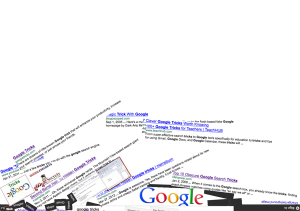
8. Google Barrel Roll
A Fun Google trick that is still accessible today, the barrel roll means exactly as it says: make Google do a barrel roll. Simply type “Do a barrel roll” into the search bar and Google dutifully obeys. Warning: This Especially Fun Google Trick is known to make babies cry and grown men squeal with delight.
9. Google Rainbow
Like a handful of the other Fun Google Tricks included in this list, this third-party website that has no official affiliation with Google but only offers its two cents in letting people experience the search engine in a delightful way. If you like colors, this site delivers it—although it may remind you more of the internet circa early-1990s, with all its animated GIFs.
10. Google Sphere
Google Sphere turns every little element you commonly see on Google’s homepage into a swirling “sphere.” It’s pretty cool, but it’s no longer implemented on Google. To see how it once worked, just visit the link below.
11. Google Spam
Probably not an actual Google trick but more a manifestation of how Google offers users related information. In the folders in your Gmail account, you usually see a one-line text advertisement from Adsense. But in the Spam folder, what you’ll see is a real Spam recipe—yes, it’s a recipe for something you can actually eat.
google askew 
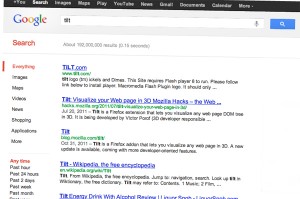
12. Google Tilt or Askew
Typing the word “tilt” or “askew” on Google (specifically if you’re using the Chrome or Safari browser) commands the search engine to “tilt” the whole screen slightly to the right.
13. Dragon Slayer
Those who use Google Docs will find this mildly amusing. If you create or open any spreadsheet, pressing Shift+F12 pops up a message that says: “Dragon slain! Congratulations, you’ve slain the dragon! ]B=8}”.
14. Google Ninja
Who doesn’t love ninjas? Google definitely does. If you’re using your Google Reader feed, press the keys “up, up, down, down, left, right, left, right, B, A” and a ninja (or a couple of them) appear!
15. All the Google Doodles
Over the years, Google has released several of its “doodles”—a temporary re-design of the Google logo made as a tribute to a historical event or the birthday of someone who has changed the world for the better. Through the link below, you’ll find all of the Google Doodles, not only the American versions.
16. Recursion
Type “recursion” into the Google search bar and Google in return asks, rather recursively: “Did you mean recursion?”
17. Google’s Nessie
Use the beach theme with your iGoogle homepage, then very patiently sit there and wait until the clock strikes 3:14 AM. Or you can just more the clock forward and see the monster” that comes out. If you actually waited several hours until 3:14 AM, finally seeing the monster might not totally amuse you.
18. Flight Simulator
What started as an Easter egg became so well-loved that Google eventually turned it into a regular feature of Google Earth. Just click Tools > Enter Flight Simulator, and you’re off to make a round-the-world tour. It would have been more awesome if Google Earth also has a “rocket launcher” feature with unlimited ammo to go with it, but maybe next time.
19. Google MentalPlex
One of the earliest (if not, the earliest) Google April Fool’s joke (this one surfaced in 2000) is the Google MentalPlex. Instead of typing their queries into the search bar, unwitting users were “invited” to just “think” their questions while gazing intently into the MentalPlex circle (apparently to allow Google enough time to “read” your brain signals and transform them into actual search engine queries), then click into the circle to see the results. Even Google’s CEO and co-founder Larry Page called MentalPlex “a quantum leap in finding what you are looking for on the Internet. Typing in queries is so 1999.” It was fun. Especially if you remember that this was the early days of Google, long before the billion-dollar behemoth called Adsense and what-have-you.
20. Google Anagram
Step 1: Type “anagram” into the Google search bar. Step 2: Google asks if you in fact mean “nag a ram.” Step 3: Proceed to LOL.
21. The disappearing “OO”
This is not really a Google fun trick per se, but you can wow your clueless friend with this little “magic.” Click anywhere on the white space of the Dark Arts page (URL in linked title above), then pretend to rub your two fingers on the two OO’s on the Google logo for 2 to 3 seconds, and the O’s will vanish. To bring it back, do the same thing: Click anywhere again and the OO’s will reappear, after which you will be redirected to the real Google.
22. Annoying Google
The “Annoying Google” trick is not really annoying under normal circumstances. Even if you’re in a hurry, Annoying Google’s way of messing up the words as you type them (randomly changing from upper-case to lower-case) is not really annoying. But if you want to see this in action and determine for yourself if it’s really annoying or simply mildly amusing, visit the link below.
23. Epic Google
Epic Google is Google on steroids — not the enhanced performance however, just the obscene bulk. Once the page loads, the logo, search bar, “Search” and “I’m Feeling Excessive” buttons, all swell until they either float off the page or you type a search and get the heck outta there.
24. Weenie Google
Weenie Google is the flip side of Epic Google. Once the page loads, the logo, search bar, “Search” and “I’m Feeling Inadequate” buttons,immediately begin to shrink to inscrutable and barely-usable sizes. Is fun, no?
25. Chicken Rolling
“Rick-rolling” is a popular prank that involves redirecting the unwitting user to a video of music artist Rick Astley singing one of his hit songs (most often “Never Gonna Give You Up”). Chicken-rolling, on the other hand, is like Rick-rolling, but with one dancing man eating fried chicken legs. To subject your unwitting friend to this prank, type the code “2204355” then click “I’m feeling lucky.” See what happens

EnjOy..:)
Bugs Of Techn0l0gy

:Google Makes Android 4.3 Official, Offers Multi-User Restricted Profile Accounts And Bluetooth Smart:

Google Makes Android 4.3 Official, Offers Multi-User Restricted Profile Accounts And Bluetooth Smart


android-big

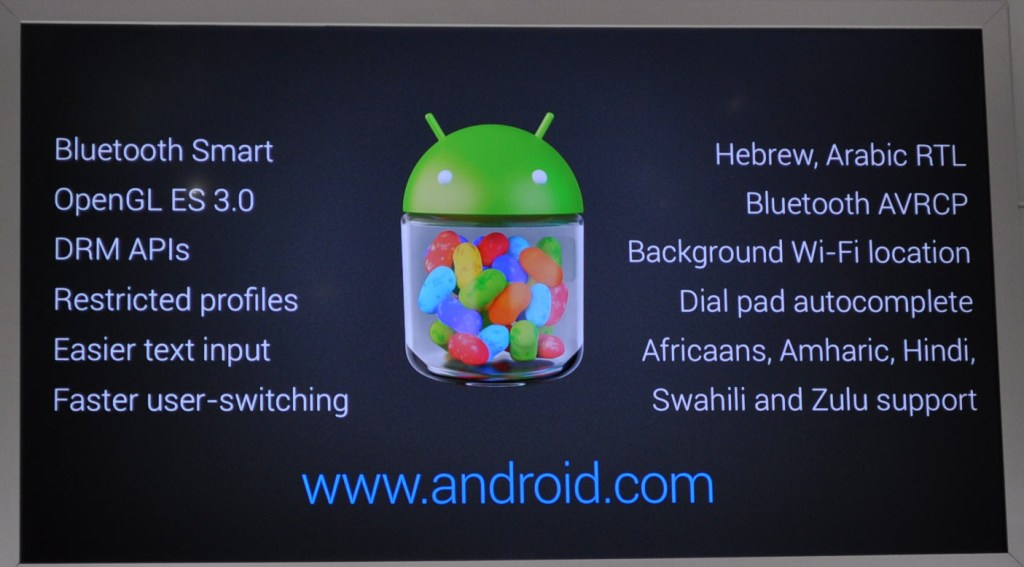
Android 4.3 isn’t an overly dramatic advancement over Android 4.2, but the new version of Google’s mobile OS announced today does bring a number of improvements that should appeal to both developers and end users. Highlights include the redesigned camera interface, general performance improvements for the OS including smoother animations, and long-awaited Bluetooth Low Energy support.

android 43

Muti-User Restricted Profiles

This builds on the multi-user accounts on 4.2, but adds Restricted Profiles. These make it possible to do parental controls on the tablet, by changing the performance of apps and other services based on who’s logged in. It also blocks out access to stuff like in-app purchases. There’s much more to this than just parental controls, however, including options for provisioning in enterprise settings.

Bluetooth Improvements

Bluetooth Low Energy (Bluetooth Smart) makes it easy to connect accessories to Android devices without sapping too much battery. This is key for smart watch and other wearables, as well as health and fitness trackers.

OpenGL|ES 3.0

This is huge for game developers, as it allows for much better graphics rendering, which shows off very well in the demos Google showed off on stage. Now we can also see lens flares a la J.J. Abrams, and other very nice visual effects on future games. All of the above is rendered in real-time in native 1080p.

DRM APIs

Who doesn’t get excited about locked down media content? Serisously though, this is a boon for content providers and should help Google convince even more to offer up greater libraries, with the peace of mind that their stuff is safe. It does accompany the news that Netflix will deliver 1808p video streaming on Netflix, making the Nexus 7 the first Android tablet to get that.

Notification Access

You now can access and interact with notifications form the Android status bar, and use those to be displayed in another app or via Bluetooth on a connected device (like the Pebble) and you can change their read status and dismiss them, too.
The update is pushing out live today to existing Nexus tablet devices, in addition to shipping on the new Nexus 7. It's also going to be coming to Google Nexus handsets and experience devices soon
EnjOy..:)
MamoOn..

:7 Google Glass Features That Will Convince You to Buy:

:7 Google Glass Features That Will Convince You to Buy:

When Google Glass was first “announced” back in early 2012, the rumor mill went on overdrive. Speculation was rife about what Google was planning to do. Wearable technology ideas were thrown left and right. Augmented reality rumors were even brought up. At this point, with Google Glass being available to a few people, we know much more about Google’s “next big thing”, but I wager that many an average consumer still is not totally clear about what Google Glass can do.
Sure, we know that it gives the user the power to be connected by merely wearing the device. You can take pictures, tweet, and do all sorts of stuff you can do with your smartphone right now. But what are the Google Glass features that will really convince you to shell out hundreds – maybe a thousand – dollars for something that, depending on your perspective, looks really cool or really dorky?
Here are some of the Google Glass features that just might push you over the line of doubt.

1. Prism screen display
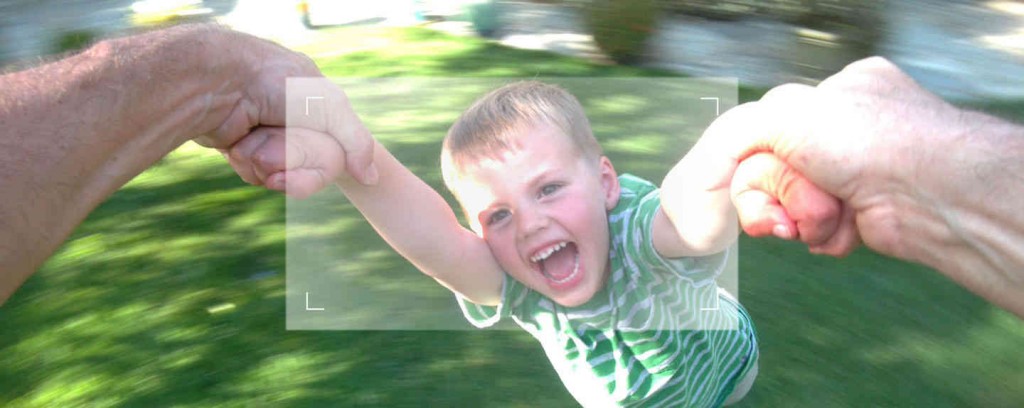
It really is the stuff science fiction is made of, except that it is science reality now! The highlight of all Google Glass features, this screen displays data without obstructing your view, plus it is actually the equivalent of a 25-inch high def screen eight feet away. It’s something that Tony Stark himself would wear, I think.

7 Google Glass Features That Will Convince You it is the Future

2. Take pictures/video
This feature is a boon and a bane, depending on how concerned you are with privacy. On the one hand, you can easily take photos and videos just by issuing a voice command. Yeah, you might look/sound silly doing that, but it sure it convenient! Of course, privacy issues are already being raised at this point. Still, having the ability to take a picture/video of what you actually see rather than having to hold up your phone is going to change our habits. A lot.

7 Google Glass Features That Will Convince You

3. Start and hold a Google+ Hangout
I am not sure just how convincing this feature is if you are not a Google+ user. Then again, the news is that users are leaving Facebook in hordes and that Google+ is gaining more traction. It is probably not unthinkable to see more people using the other social network in the near future. And if this is the case, being able to engage in a Google+ Hangout using Google Glass will certainly be handy.

7 Google Glass Features That Will Convince You

4. Text message
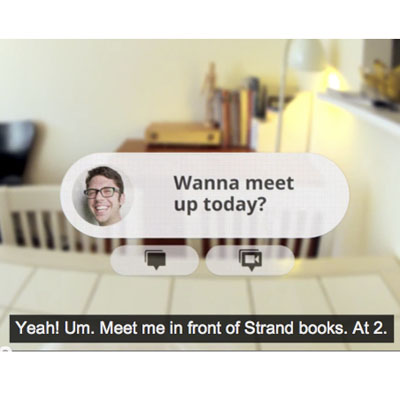
Of all the Google Glass features, this is probably one of the most convincing, especially for those who are constantly hunched over their phones texting. This also extends to emails, by the way. To be honest, the mere thought of not having to hold the phone/tablet to check mails/text messages and reply to them is more than enough to entice me to start saving for Google Glass.
7 Google Glass Features That Will Convince You
5. Google Maps
For people like me who are already totally reliant on Google Maps to get around their own city without being ripped off by cab drivers who prefer to take the “scenic route”, Google Glass’s Maps integration is essential. Turn-by-turn directions included.

7 Google Glass Features That Will Convince You

6. Translate
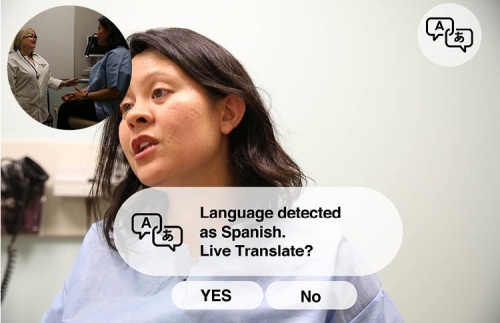
Love to travel but can’t speak a foreign language if your life depended on it? No need to worry if you have Google Glass with you. It can help with translation, even if it’s another person speaking to you in a strange language. At the moment, this feature is not fully developed yet, and there are probably issues with Internet connectivity, but once this feature gets there, it will be awesome.

7 Google Glass Features That Will Convince You

7. iOS Compatibility in the works
This is not really a specific feature if you think about it, but one of the main concerns of consumers is that Google Glass will not be compatible with their other devices. The good news is that they are working on iOS compatibility for important Google Glass features like turn-by-turn directions and text messaging.
There really is no reason not to try out the Google Glass, even with only these seven features, is there? Perhaps the current price of $1500 is a tad steep, but if Google pulls the price down to half – or less, as some think will happen – then it is not going out on a limb to predict that Google Glass really will be the next big thing in consumer tech. There are critics – pessimists will always be present and loud, even – but a lot remains to be seen, and if these features work excellently, I honestly can’t see why you wouldn’t be convinced to go the Google Glass way.

 EnjOy..:)
MamoOn..

:New Google Site Shows How Search Works:


::New Google Site Shows How Search Works ::


Most of you use a major search engine like Bing, Yahoo or Google, everyday. And some of you have never given any thought to where those answers come from, like Google is just some all-knowing genie in the “cloud”. Those of you who are tech savvy know that the search engines use algorithms to answer questions, but how much of the actual process do you understand?
New Google Site Shows How Search Works
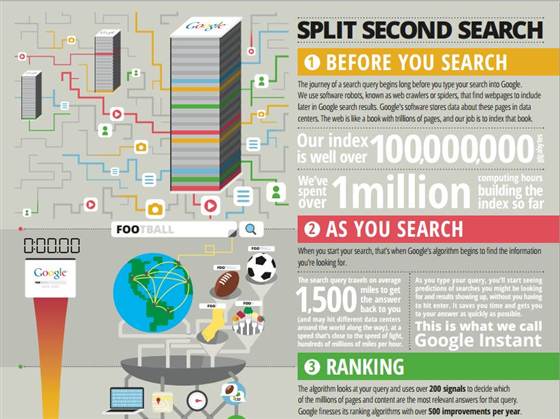
If you would like a more indepth look at how Google’s algorithms turn your questions into answers, the company will explain it all to you on it’s new site How Search Works. Google launched the site on Friday to help explain the magnitude of the engines search process to its loyal users.
Explaining the process
Upon entering the site you are prompted to scroll down through an unfolding, animated presentation that follows the entire path of a search query. Google explains how they search through over 30 trillion pages by crawling, sorting, indexing, using algorithms and writing formulas and programs to deliver its users with the most relevant results.
The site also gives you a broader view of algorithms and lists the numerous aspects of the search such as user context, site and page quality, safesearch, freshness and refinements. And knowing that all of its users are not geeks, the company keeps it in terms that are easily understood by an average Google user.
New Google Site Shows How Search Works
Google’s war on spam
One of the tabs on the site is dedicated to explaining all the ways that Google works to rid its content of spam. It also informs the reader of the many different types of spam like pure spam, parked domains, hacked sites and user generated spam. The site tells how they use both algorithms and manual blocks to take action against spam in order to remove the junk and bring a tidy group of relevant material in answer to the users question.
To see all the details for yourself, check out the site at How Search Works.
EnjOy..:)MamoOn..

Facebook to Pass Yahoo Inc., Top Online Display Advertising Dollars in 2011

According to a recent Reuters article, Facebook's U.S. advertising revenue will total approximately $2.2 billion in 2011, consisting of a 17.7 percent share of the U.S. market for graphical displays that appear on websites. This is an increase from Facebook's 12.2 percent share last year and vaults Facebook to the top spot in online advertising revenue, which formerly belonged to Yahoo Inc. According to Reuters, "the figures underscore the growing clout of Facebook, the world's No.1 Internet social network."

The overall U.S. display market's growth in 2011 is projected at 24.5 percent, and Facebook is not the only company reaping the benefits. Writes Reuters: "Internet companies such as Yahoo, Google Inc and Microsoft Corp are competing for those advertising budgets, while new players such as online coupon company Groupon are offering marketers alternatives to traditional online display ads." Google will earn an estimated $1.15 billion from U.S. display ads in 2011, up 34.4 percent from last year.

The article is based on an eMarketer report.

NH cf

How To Put Limewire Music, Youtube & Google Video, or DVD Video to iPhone


1. Put music and videos from Limewire to iPhone

Limewire is a download tool I assume lot of us use. I often use it to download free music and videos and put them on my iPhone. If you don't have Limewire, you can download it from its official website.

Search and download songs from Limewire. You may get songs in all sorts of formats, but not all formats are supported by iPhone. Usually I select three formats: MP3, AAC and M4A formats that are supported by iPhone and can be directly transferred to iPhone using iTunes. You can visit the official website of Apple for the detailed specs info for iPhone. After you download the songs, open your iTunes, click "File" from the upper left corner, select "Add file to library", browse your computer hard drive and find the songs downloaded by Limewire, select the songs you prefer, click OK and the songs will be put in your iTunes. Then you can just transfer the songs to your iPhone from iTunes.

2. Youtube video to iPhone

I often visit Youtube to watch videos on iPhone and sometimes I download videos which cannot be found on iPhone from Youtube to put on my iPhone. Youtube videos are in FLV formats, so I use a free online FLV converter to do the conversion.

Firstly, go to Youtube and open the page of the video you want to put on your iPhone. And you will find the Youtube URL of this video to the right of the playback window. Then copy this URL.

Secondly, go to vixy.net , paste the copied URL into the URL field of this web page, and select "MP4 for iPod/PSP" from the "Converts to" drop-down list. (iPod Video could also be used on iPhone. This will save you a lot effort if you have many iPod videos.) Then click "Start" below this list to start the conversion.

Finally, after the conversion, this website will provide a download link for you to download the converted MP4 file. When you see the link, you can just download the final file from the link, save the downloaded MP4 file on your computer and use iTunes to sync it on to your iPhone.

Here you can get a free resource website list which has free stream video you can download for free.

3. Google Videos on iPhone

Because Google allows you to download (most) videos from their site in an iPhone compatible format, all you need to do is download that version of the video. To do this, pull up Google Video and search for a video as you normally would. When you actually get to the video, you're not going to see much. To play the video, click the little select list on the right and select "Video iPod/Sony PSP" and press "Done". Press download and the video will come up shortly. Simple, right?

4. DVD/Video to iPhone

I have a huge collection of DVD movies and video files. And I always put a few movies on my iPhone to kill time while I'm on the subway/bus.

DVD movies cannot be transferred to iPhone via iTunes directly, so I had to find a converter to do that. I have used a few converters and the one I am using now is Wondershare DVD to iPhone Converter. It is not free, but not expensive either. I decided to spend the money coz it does a good job on the final quality and conversion speed. And if I don't want to put a whole movie, I can just convert part of a movie onto my iPhone with this app. My OS is Windows, so I use the Windows version. If you are using a Mac OS, I have noticed that they have a Mac DVD to iPhone converter that you can try, which I don't know if is as good because I don't have Mac OS.

Most of my video files are not MP4 formats that can be directly used on iPhone, so I also bought the iPhone Video Converter from the same company coz I thought it would also be nice app, and it turned out to be so great! Actually, this video converter and the DVD converter are pretty much the same as far as the functions and the operational steps are concerned, and the only difference to me is that one is to convert DVDs and the other is to convert video files. Meanwhile, these programs are all able to work for iPod and Apple TV; this will save you some bulks if you happen to have an iPhone or an Apple TV. If you also want a video to iPhone converter, you can just download a trial version to see if it is what you need. Unfortunately, they don't have a Mac version for video converters.

5. Sync music and videos to iPhone

So far, using iTunes to sync files to iPhone is the only choice we can make. I use iTunes too but I have found it a bit clunky. So let me show how to sync music and videos.

Select the audio/video files you want to sync from your iTunes library, drag them under "PLAYLISTS", and a new playlist will be created with all the selected files in it. Then you can click the Music menu tab, check the "Selected playlists" option, and select the newly created playlist to sync.

If you want to remove the files, just uncheck the box and you will find the way.

The above is my experience with converting and transferring files from various sources to my iPhone, and I hope it can shed some light.


Blog Archive